Codex · macOS
A Codex GUI that keeps the project in view.
Use Codex in Consept to organize tasks into project threads, follow tool activity, and review the resulting code. Keep a terminal and your project knowledge close at hand.
Apple Silicon Mac · 7-day trial for eligible new accounts
A closer look
Give each Codex task a place to continue.
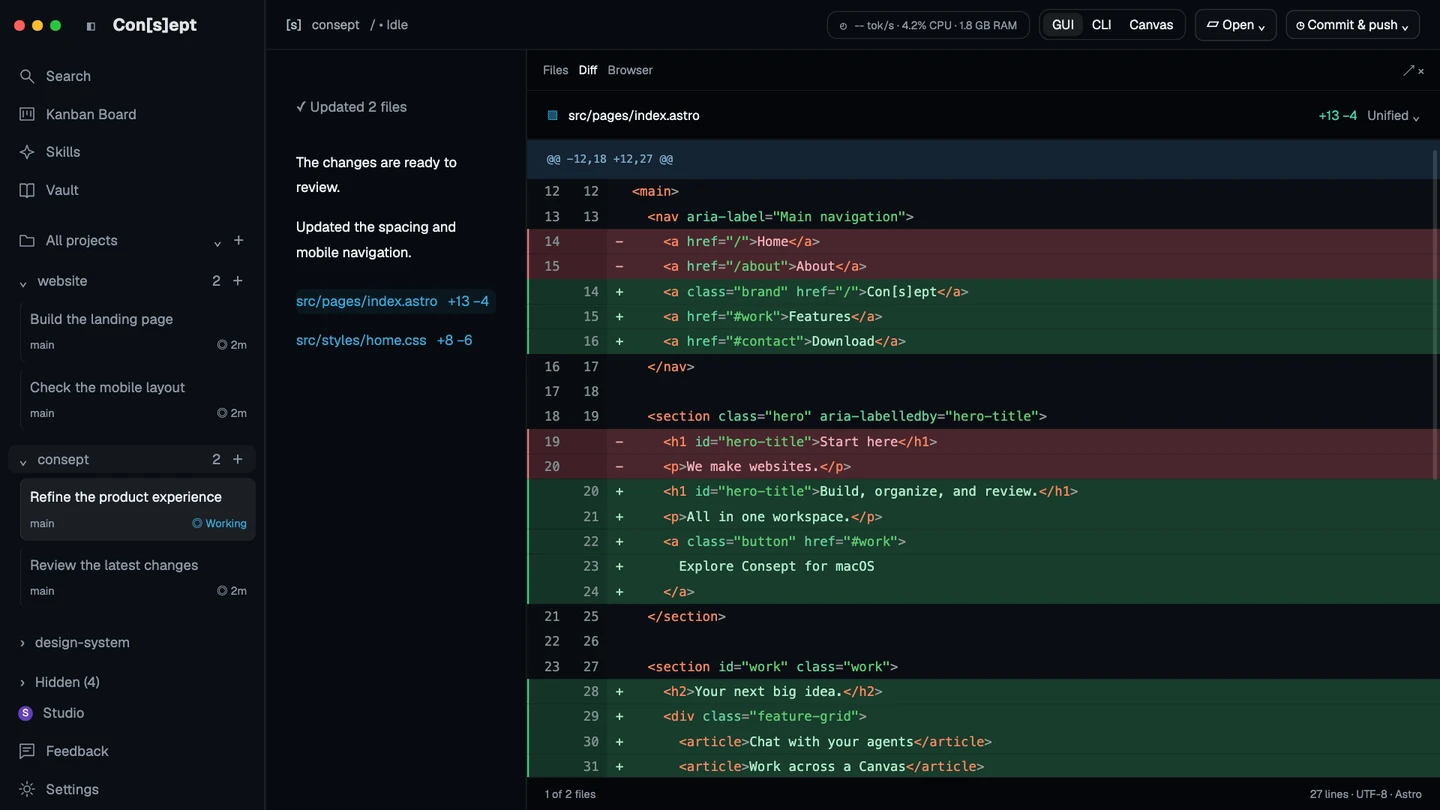
A useful Codex workflow has a clear project, a specific request, and a way to inspect the result. Consept keeps conversations grouped under their projects. Open an existing thread to see its work history or create a new one when the task needs a fresh conversation.
Move between a visual conversation and terminal work as the task requires. The workspace also brings files, source control, and browser preview into reach, so reviewing the output remains part of the coding flow.
Keep provider identity clear
Name and color your Codex provider configurations so they are easy to distinguish. Consept supports a shared Codex home with separate account authentication through a shadow home when you need work and personal setups.
Return to saved terminal sessions
CLI and Canvas expose saved-session recovery for supported Codex sessions. When an exact saved session ID is available, resume that conversation; otherwise use the provider’s session picker. Recovery depends on what Codex saved.
Carry project decisions forward
A configured Vault lets supported Codex sessions search and update the project’s Markdown notes. Keep architecture decisions and gotchas in concise notes, and use current source and tests to verify them.
From setup to review
Set up a Codex workspace
Connect your Codex setup
Install Consept and sign in. Install and authenticate Codex, then check the Codex provider in Settings. For one account, start with the default provider.
Choose a project and task
Add the directory you want to work in. Start a Codex thread with a concrete request, relevant files, and the checks you expect before completion.
Inspect before you ship
Read the diff, run the appropriate checks, and use the project preview for visual changes. Commit after review, then keep the thread available for follow-up work.
Setup references
Official documentation for the tools used in this workflow.
Product guide by Consept · Reviewed
Choose your workflow
Why use Consept with Codex?
Consept is an independent workspace around the Codex provider. Choose it when your workflow also needs other providers, arranged terminals, and shared project notes. It is not the official OpenAI Codex app, and provider features can differ between interfaces.
Questions about Codex GUI
Do I need an existing Codex account?
You need a supported, authenticated Codex configuration. Consept does not include a Codex subscription, API credits, or additional provider usage limits.
Can I use the Codex terminal interface?
Yes. Use CLI for a focused terminal or Canvas for several terminals. Provider conversation history and resume behavior depend on the underlying Codex session.
Are work and personal Codex accounts supported?
Yes. Consept supports named providers with a shared Codex home and a separate shadow home for another account’s authentication. Check the account identity in Settings before using it for a project.
Can another provider use my Codex conversation?
Starting another provider creates a separate conversation. Supported providers can use the same configured project Vault, but transcripts are not transferred automatically.
What do I need to try Consept?
Download the app on an Apple Silicon Mac, then sign in. Eligible new accounts get seven days from their first app login, with no card required. After the trial, Consept costs $19 per month or $129 for lifetime access. Provider subscriptions and API charges are separate. See plans and pricing.
Your project. Your next step.
Try it on a real task.
Download Consept, connect your provider, and open the project you want to work on.
Download for macOSNo account needed to download. Sign in when you open the app.